Here are some simple steps to add your sync of your data to GoogleDrive
In the menu choose 'Manage my Company' then 'Manage Xero Organisations'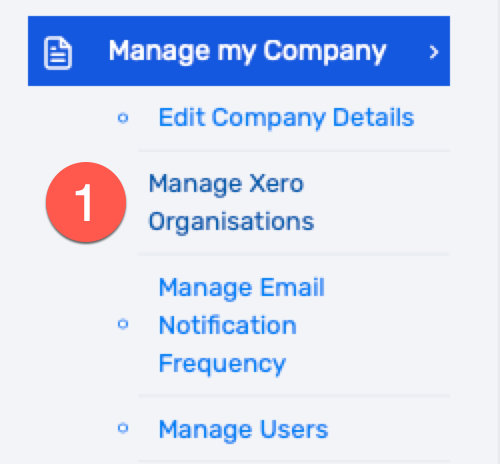
Select the Org that you wish to configure, in this example it is Distraction. Then click on the 'Edit' button...
Select 'Cloud Storage and click on the drop down...

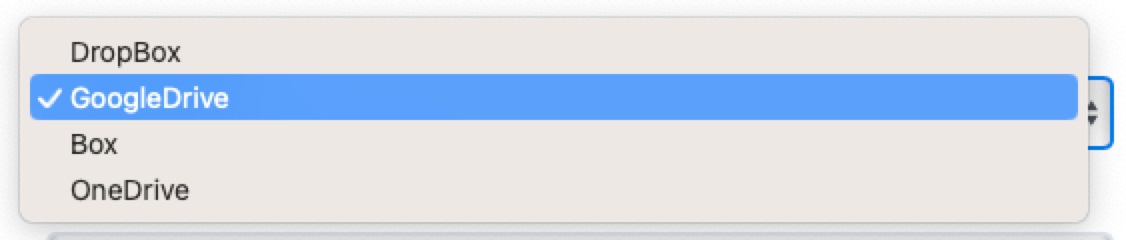

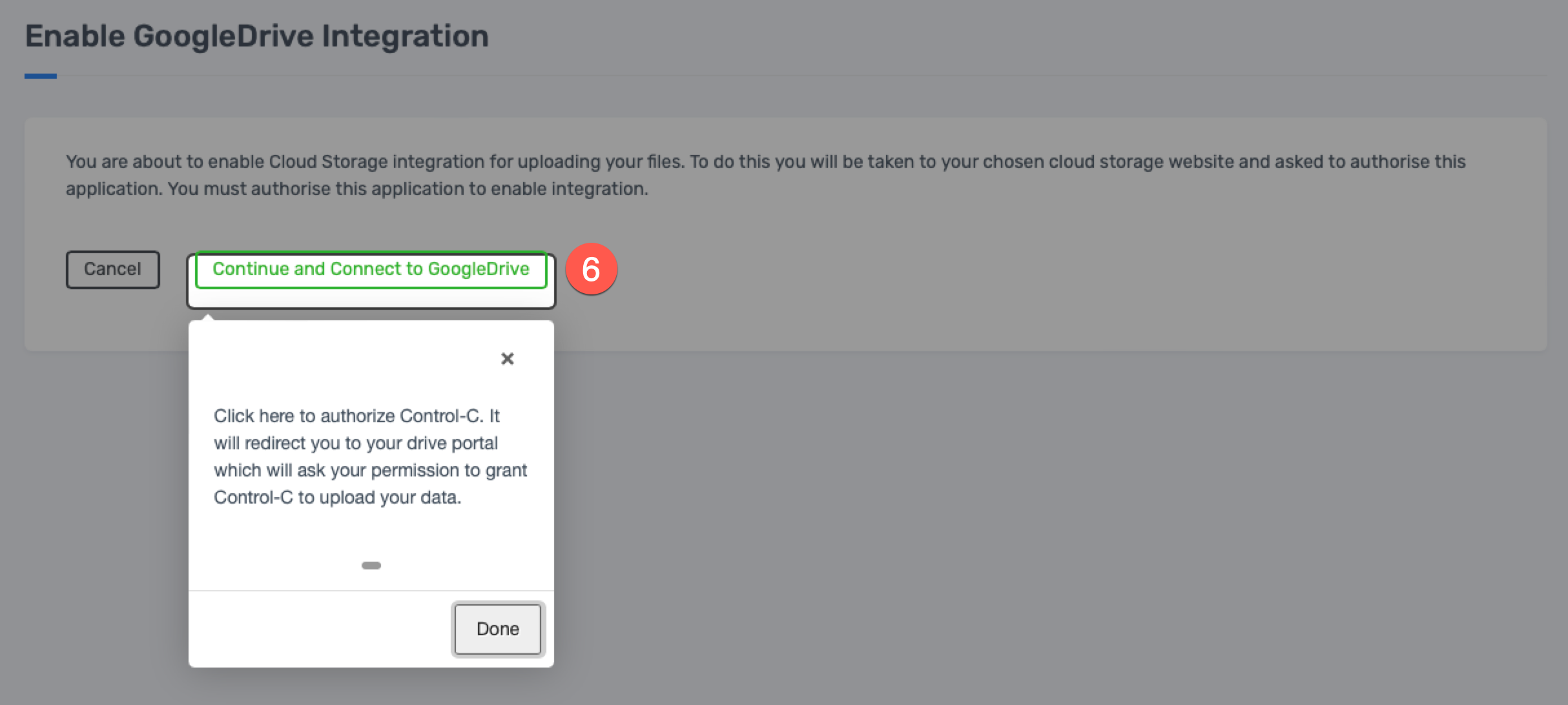
Notice the Cloud Storage is now set to GoogleDrive. Now click on 'Enable Cloud Storage Integration' to the right...

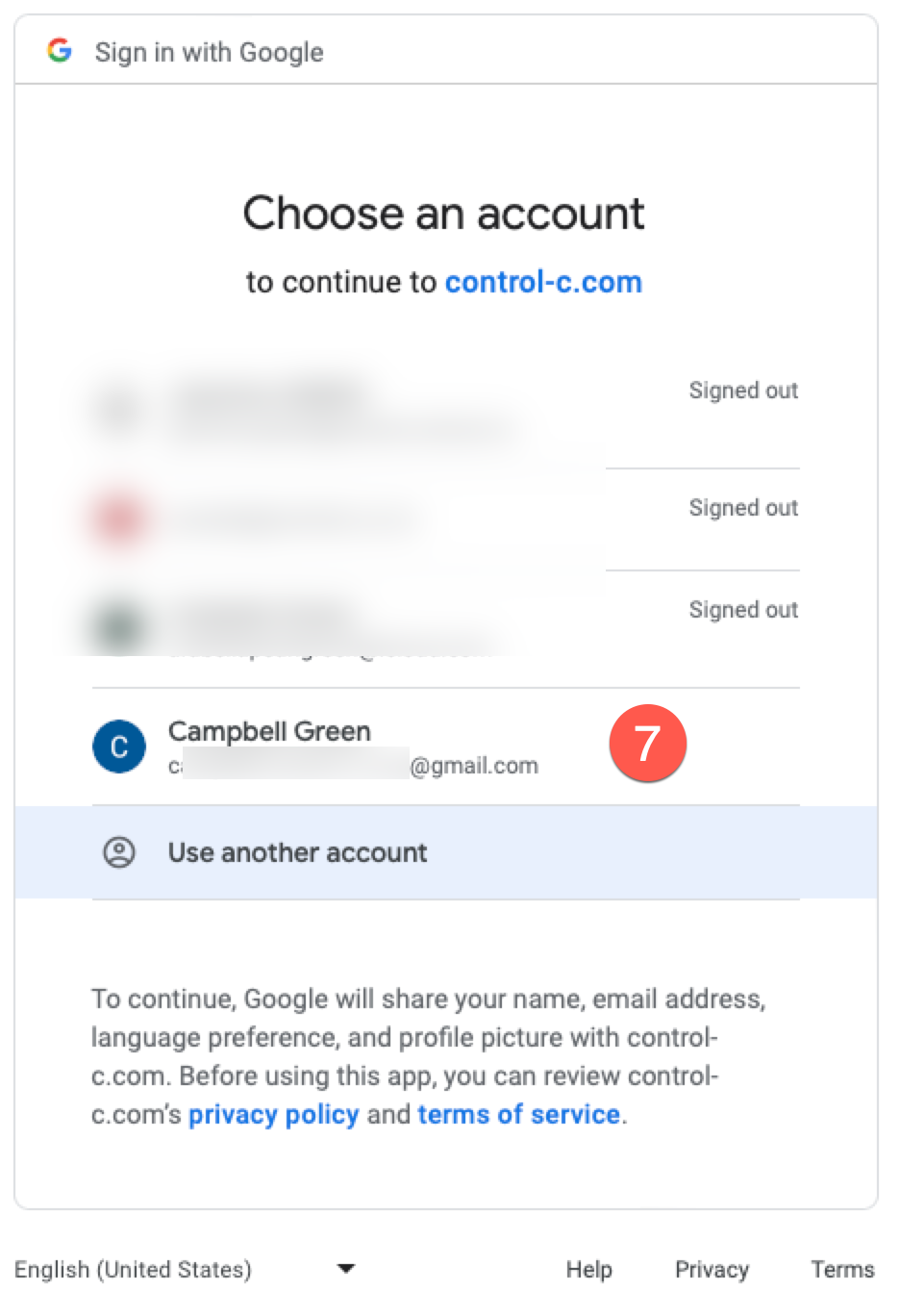
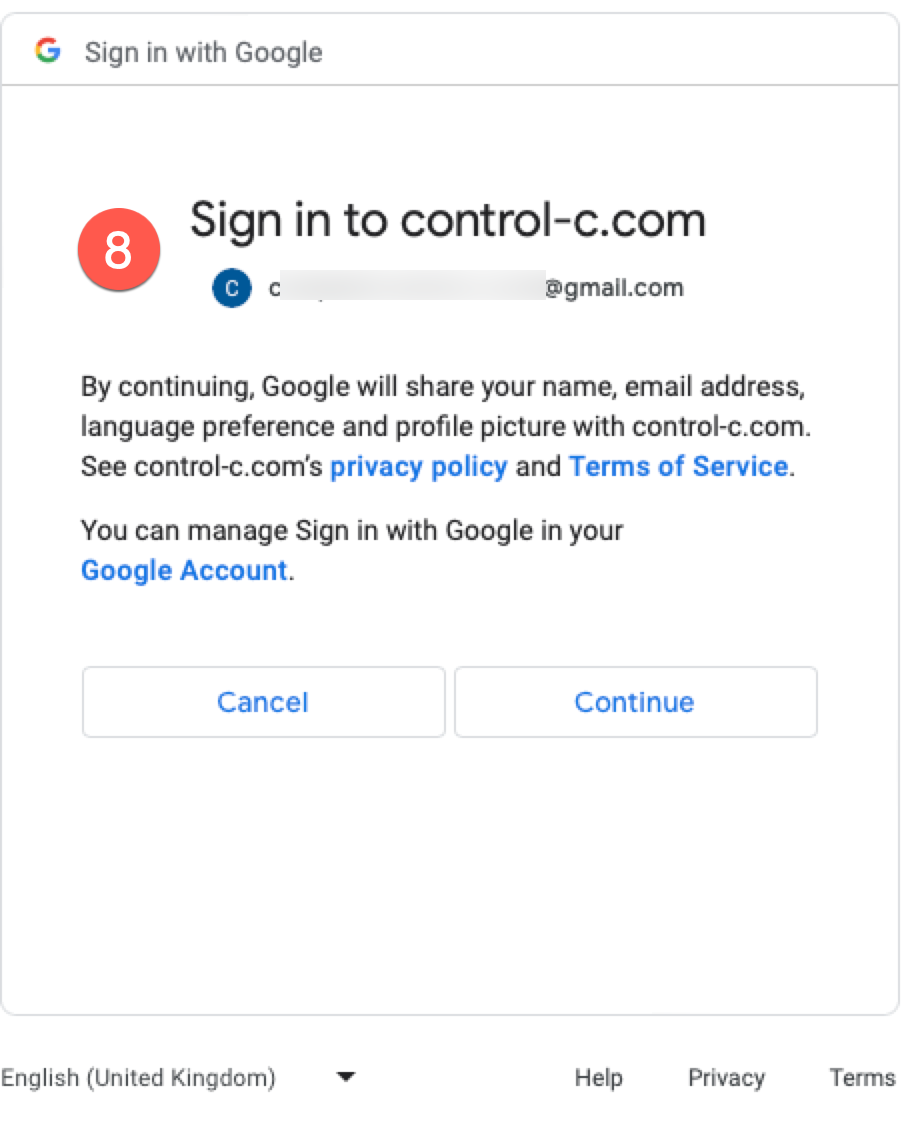
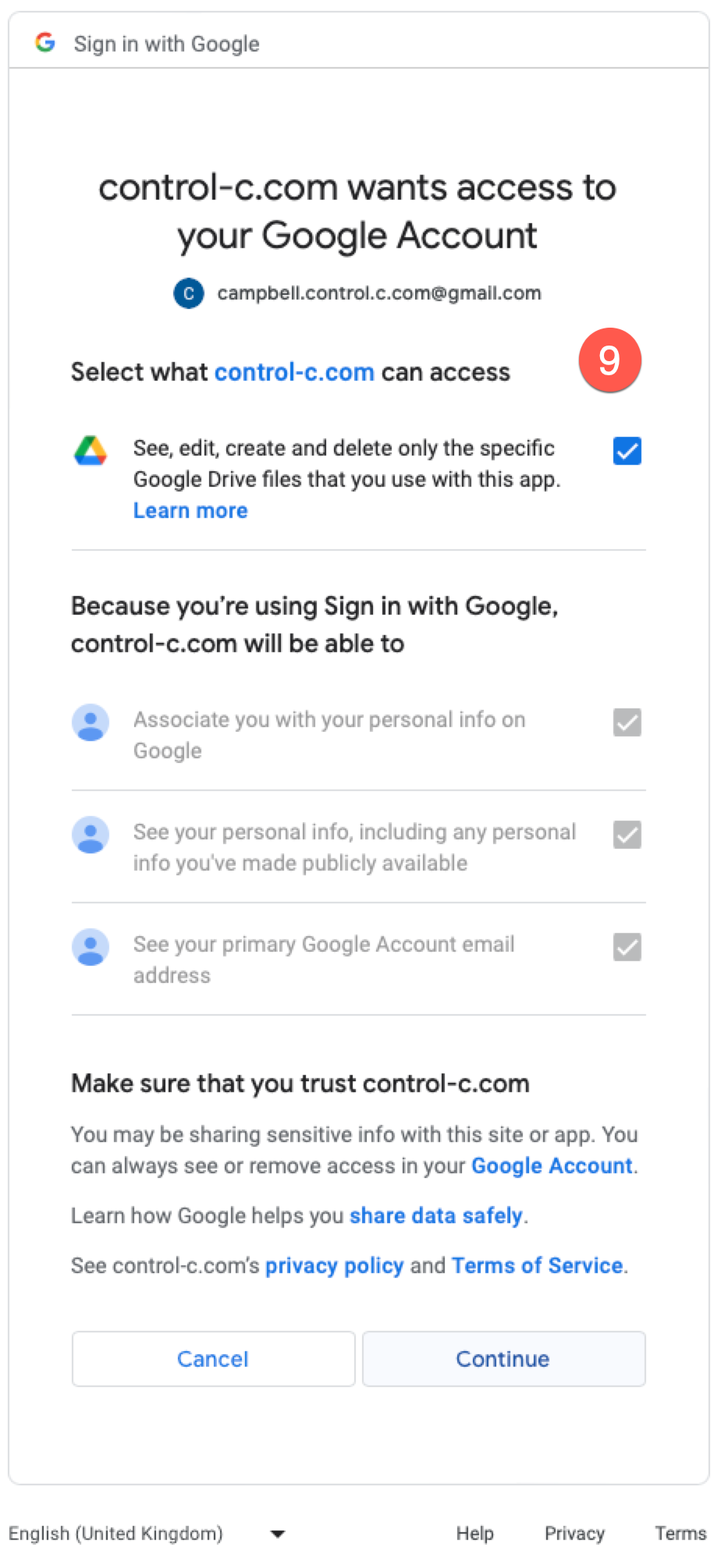
Make sure you grant access by ticking the blue check box. Note: Control-C can ONLY see the Control-C folder and subfolder inside it. Nothing outside of this is viewable by Control-C.
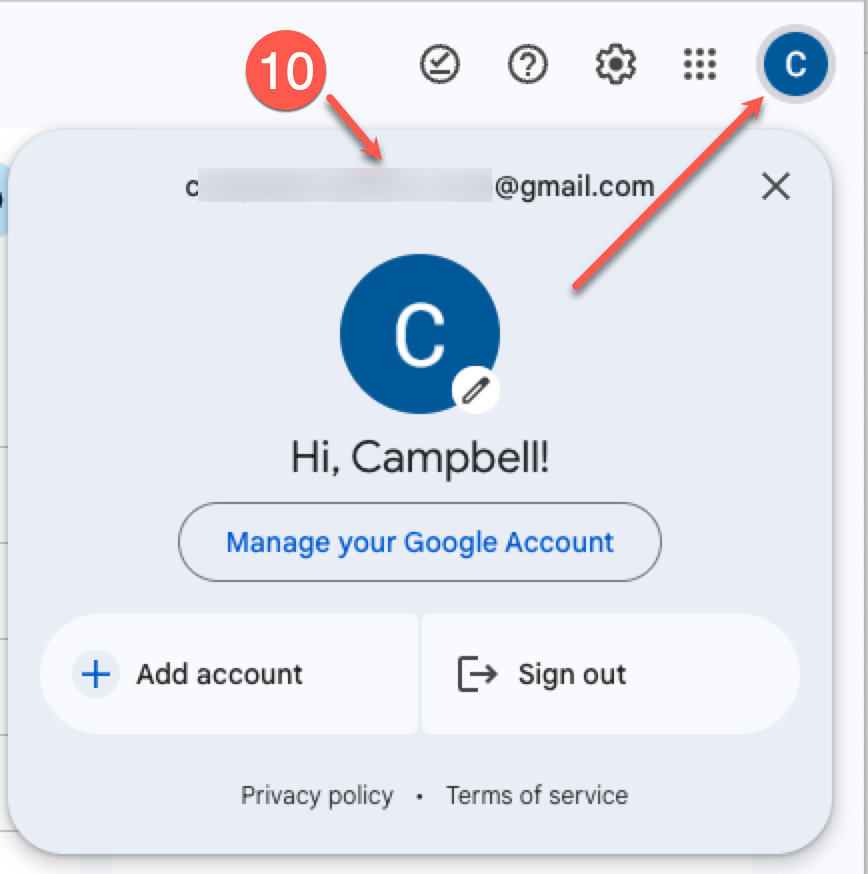
As a check, please ensure that the account that your GoogleDrive is set to in Control-C is the same as the one that you are browsing when looking for your Control-C backup folder in GoogleDrive.